
Creating visually appealing and easy-to-follow presentations is a vital skill in today’s professional world. Adding bullet points to your Google Slides can help organize information and make your key points stand out. In this blog, we’ll explore the simple and effective ways to add bullet points in Google Slides. We’ll also share tips on using bullet points effectively and suggest some free Google Slides templates to enhance your presentations.
Why Use Bullet Points?
Bullet points are a powerful tool in presentations. They:
- Improve readability and clarity.
- Highlight key points.
- Make information easier to remember.
- Create a visually appealing layout.
Using bullet points properly ensures your audience can follow along and understand your main points without feeling overwhelmed by the text.
A Step-by-Step Tutorial on Adding Bullet Points in Google Slides
1. Open Google Slides
Start by opening Google Slides and either create a new presentation or open an existing one.
2. Select the Text Box
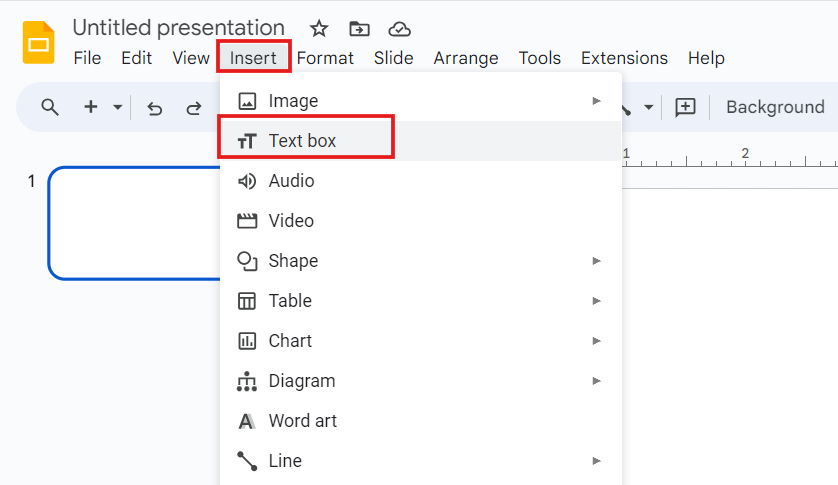
Select the slide where you wish to insert bullet points. If there’s no text box, click the “Text Box” button in the toolbar or click “Insert” > “Text Box” option to create one. ‘
3. Enter Your Text
Type out the content you want to present as bullet points.
4. Add Bullet Points
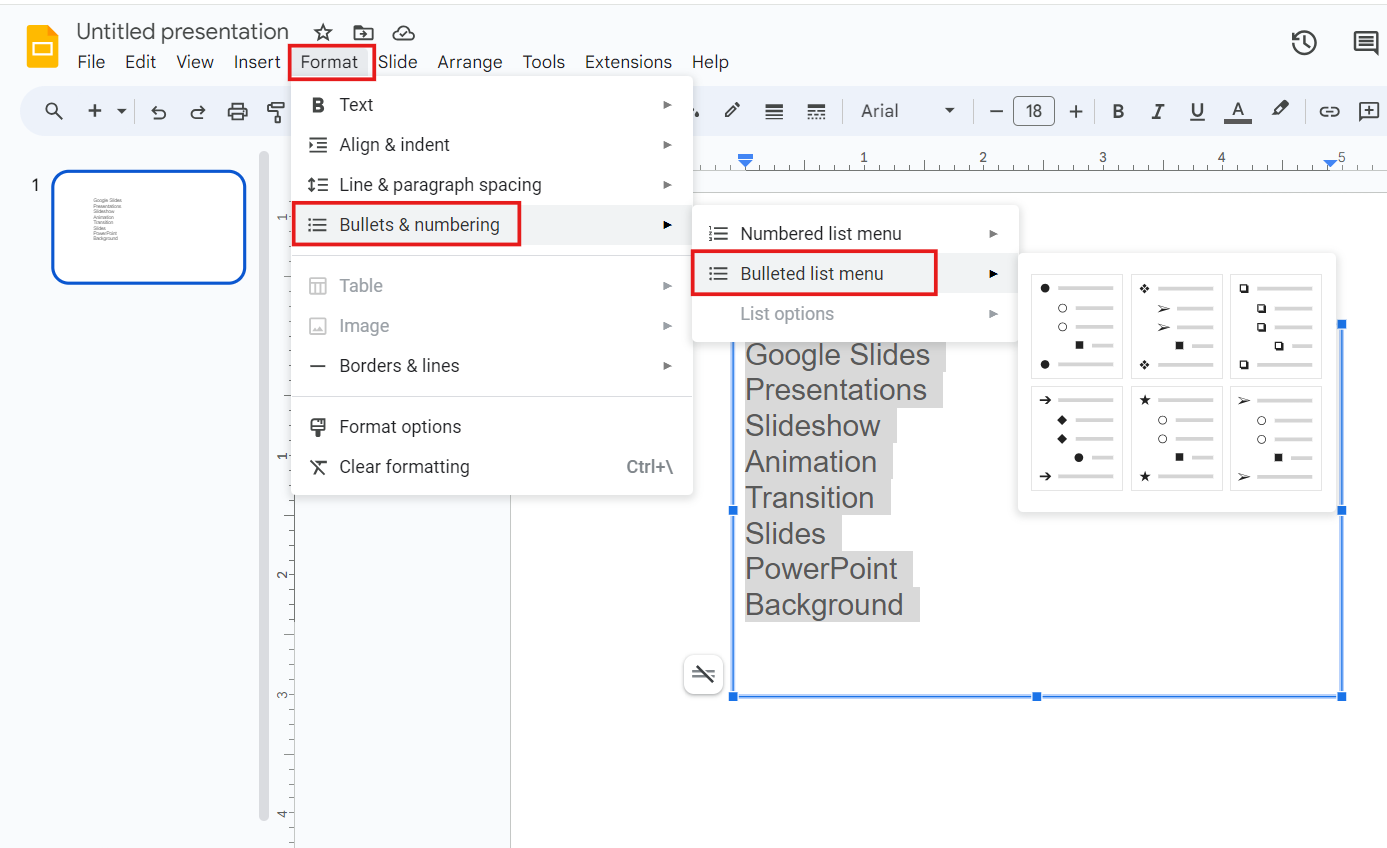
Highlight the text you want to convert into bullet points. Then, go to the toolbar at the top of the page and click the bullet point icon. Alternatively, you can click “Format” in the top menu, select “Bullets & numbering,” and then choose “Bulleted list.”
5. Customize Your Bullet Points
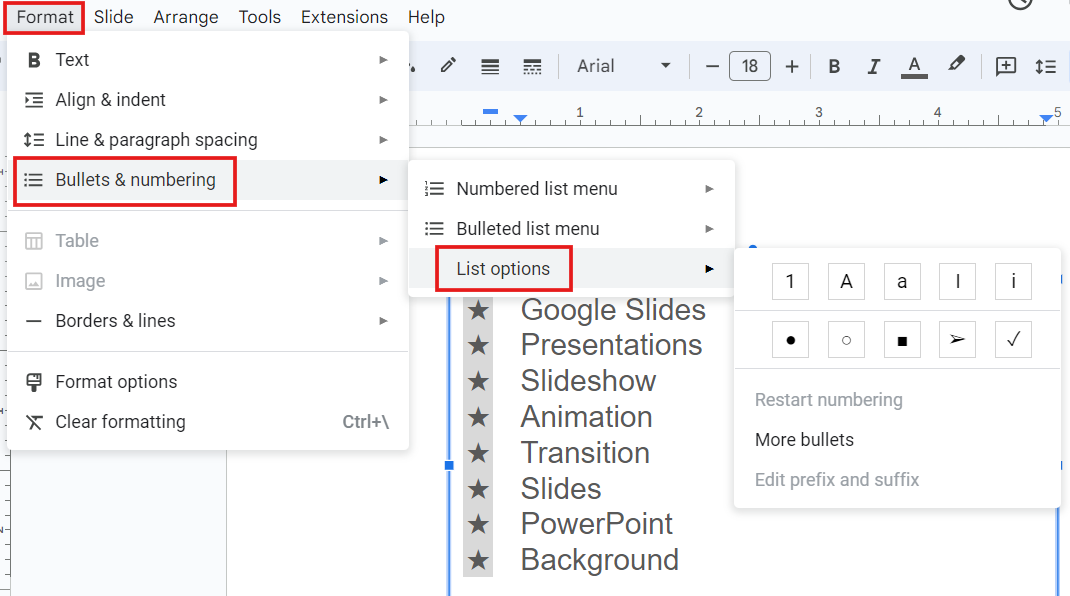
Google Slides offers various bullet styles. To change the bullet style, click the bullet icon again or go to “Format” > “Bullets & numbering” > “List options.” You can select different bullet symbols, including circles, squares, and dashes.
6. Adjust Indentation
To create sub-bullets, position your cursor at the start of the line you want to indent. Press the “Tab” key to move the text further to the right. Press “Shift + Tab” to decrease it.
7. Format Your Bullet Points
You can change the font, size, color, and spacing of your bullet points to match your presentation’s design. Highlight your text, then use the toolbar options to customize the appearance.
Tips for Using Bullet Points Effectively
- Keep It Concise: Bullet points should be short and to the point. Keep them concise, ideally limiting to one or two lines.
- Use Parallel Structure: Maintain consistency in your bullet points by starting each one with the same part of speech, such as verbs or nouns.
- Avoid Overloading: Limit the number of bullet points per slide to five or six. This keeps your slide uncluttered and easy to read.
- Enhance Visual Appeal: Use icons or images alongside your bullet points to make them more engaging. Just be sure they’re relevant and don’t distract from the main content.
For more tips on using bullet points effectively in PowerPoint presentations, check out our blog on proper ways to use bullet points in your PowerPoint presentation!
Premade Google Slides Templates
To make your presentations even more professional and eye-catching, try using Google Slides themes available online for free downloads. These templates come in various themes and styles, perfect for different types of presentations. Simply download the template that fits your needs and customize it to suit your content.
Conclusion
By following these steps and tips, you can create polished and professional presentations with bullet points in Google Slides. Utilizing bullet points effectively can make your content clearer and more engaging. Happy presenting!